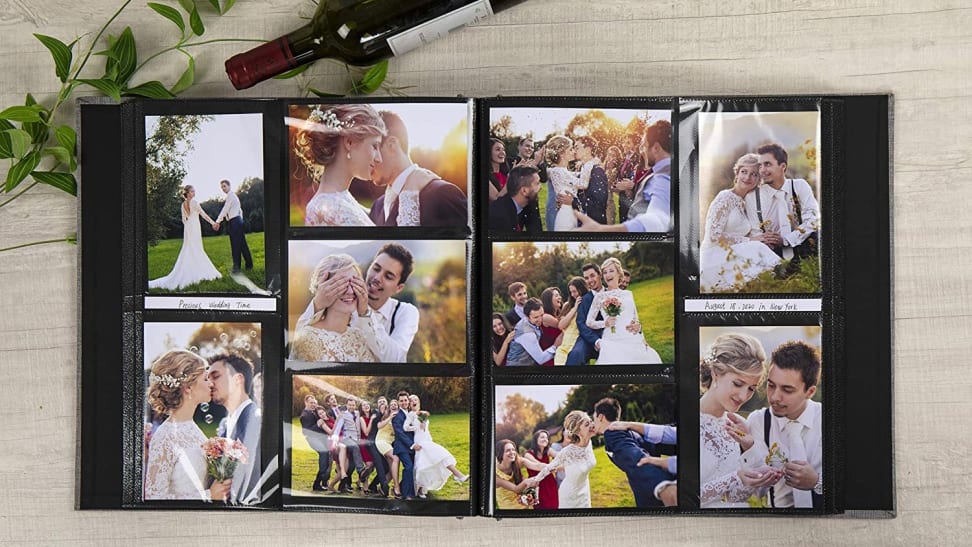
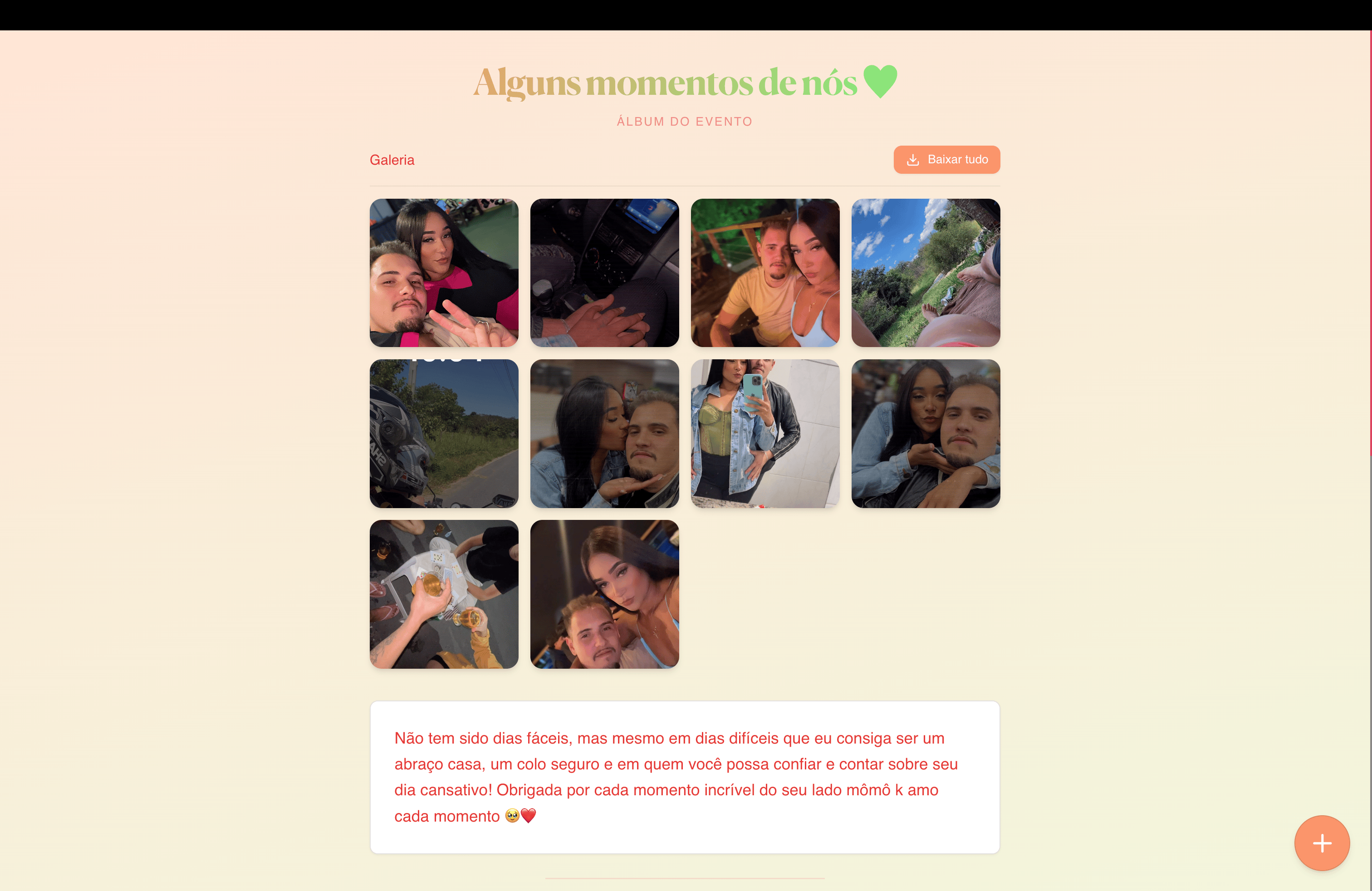
GiftsQR lets you create a wedding page with a special newspaper-style layout: couple name, message for guests, a photo gallery (your digital album), and optionally a gift list. In Brazil, you can add PIX so guests can contribute straight to your account.
This guide walks you from zero to sharing, using product screenshots and site assets.
What you will have at the end
- A unique link (e.g.
giftsqr.com/en/wedding/your-url) - A QR Code to print on the invitation, menu, or signs at the venue
- A page with featured photos, a “love story” section, and an optional gift list
What to prepare before you start
- Couple name (required when you create the page)
- Copy for guests: your story, a thank-you note, or event information
Step 1 — Open the wedding page
Open wedding setup on GiftsQR: giftsqr.com/en/wedding
There you will see the initial form and the flow to create your album.
Step 2 — Enter your details
- Enter the couple name (exactly as you want guests to see it).
- If you are using a locale that offers WhatsApp delivery for the QR, use the phone field with country and area code when prompted.
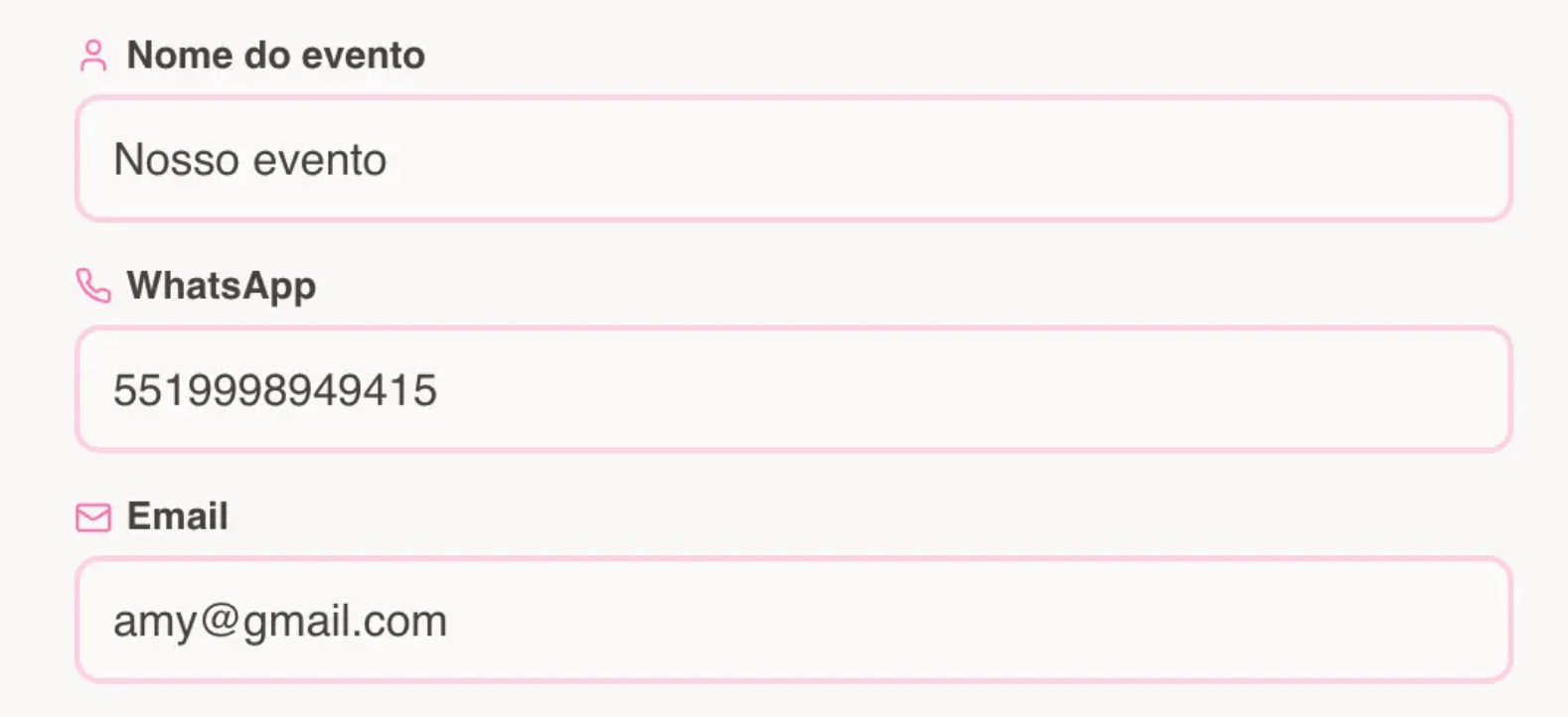
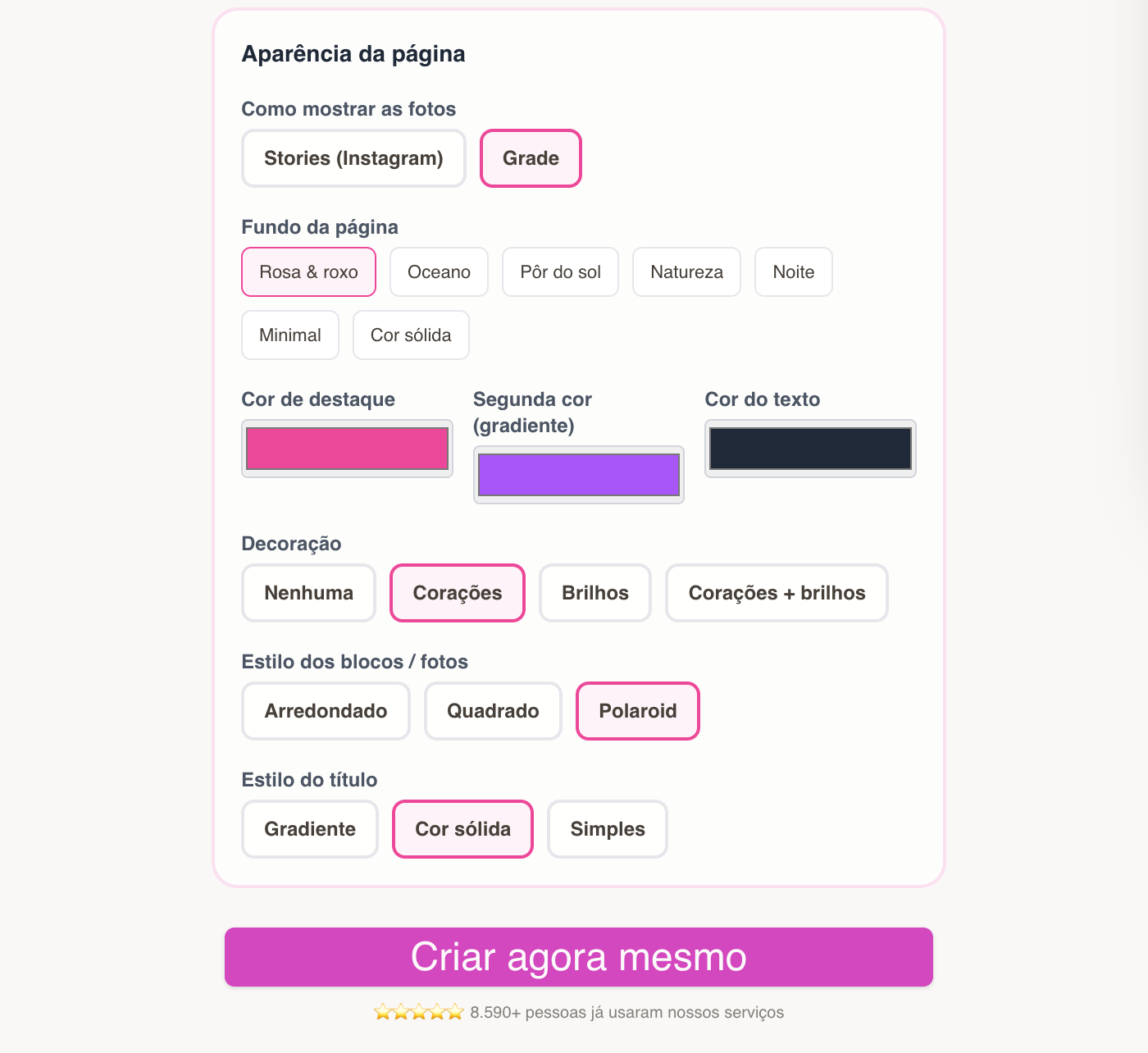
Step 2.1 — Choose the page style
- Pick a page style; you can change it later if you want.
- From here you can adjust colors, photo treatment, and how the layout looks.
Step 3 — Page created: link, QR, and editing
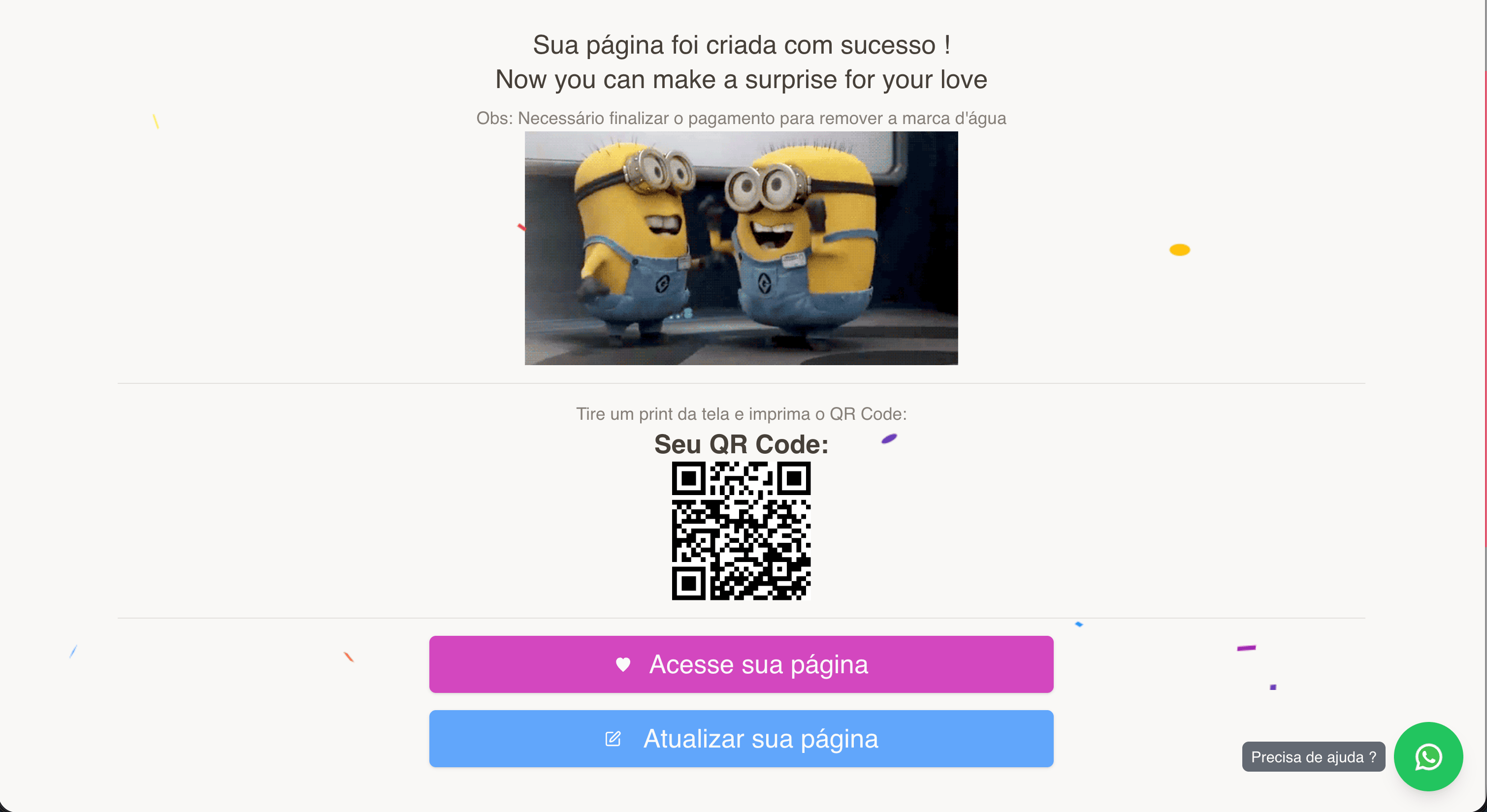
After checkout, you land on the “created” screen with:
- Your public page link
- The QR Code to download or share
- Access to the editor (where you can change colors and other details)
Keep your editor link somewhere safe — that is where you update photos, copy, and the gift list later.
Step 5 — Preview and share
In the editor, use Copy link and View page to see the album as a guest would.
Ideas:
- QR Code on printed cards, a welcome table, or a slideshow at the reception
- Link in your bio, save the date, or digital invitation

Tips for a polished result
- Copy: favor short paragraphs; on mobile, long blocks are tiring to read.
- Photos: mix portraits and day-of shots; avoid images that are too dark or awkwardly cropped.
- Design: choose a strong hero image for the area with the QR Code and invite guests to scan it.
Frequently asked questions
Do guests need to install anything?
No. They open the link or scan the QR in the browser.
Does the QR Code expire?
No — on the unlimited plan, your gallery stays online indefinitely.
Is there a photo limit?
No — you can add as many photos as you want to your album.
Ready to start?
Create your wedding gallery now on GiftsQR
For more digital surprises (birthday, love, countdown, events), explore the GiftsQR blog too.